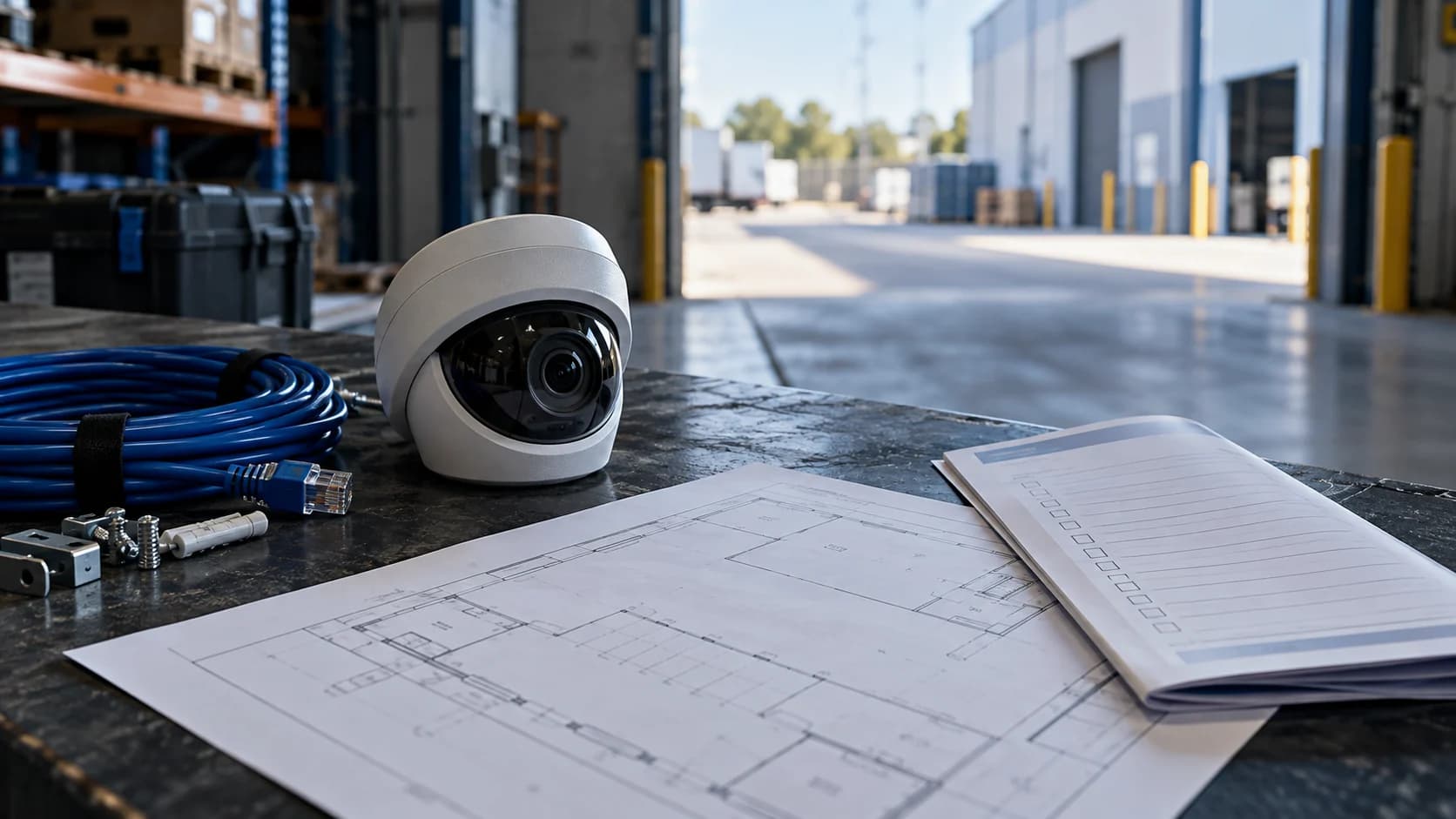
A camera register becomes useful when someone can connect a view to a job. The model number matters, but so does knowing which entrance the camera is supposed to show tonight.
The idea in view · Planning diagram
A device record needs an operating identity
- Model and version
- Physical location
- Stable view alias
- Purpose and hours
- Acceptance reference
- Change owner
Use aliases that survive replacements
Name the view by operational purpose, such as GATE-NORTH-01, rather than an employee or a temporary network address. Keep a separate model and firmware field so replacing hardware does not erase the view history.
Record the task and limits
Explain what the view needs to show, where an obstruction exists and whether day and night checks are complete. Separate installed cameras from cameras included in monitoring. A device on the network may still have no agreed review duty.
Maintain a change record
Assign ownership for updates when cameras move or site layouts change. Review the register with the coverage map before changing rules. Share only the minimum version needed for each supplier, especially where detailed site layouts are security sensitive.
Design the register for its next reader
Consider a duty manager who has never visited the site. “Camera 7” gives little context. A stable alias, a short area description and the intended task let them find the right record. Keep location diagrams and sensitive access information in their approved repositories and reference them rather than copying them into every worksheet.
Use a separate field for uncertainty. Unknown firmware, untested night performance and a temporary obstruction are different problems with different owners. Recording “pending” and the next check prevents an incomplete register from looking approved. Review the file when equipment is replaced, a layout changes or a new provider takes responsibility.
Give each view an identity that survives a device change
A camera register should let someone connect a physical device, a displayed view and an operational purpose. Use a stable alias that the site, installer and reviewing team can recognize. Device serial numbers and network addresses may be useful technical details, but they do not explain which loading door or restricted route a reviewer is looking at. Keep both the physical location and the intended task visible.
Distinguish a device from its available views or streams. One device can provide more than one useful presentation, while a movable camera can show different areas at different times. Record the accepted view or preset where the duty depends on it. If the alias remains unchanged after a device replacement, record the replacement and retest rather than assuming the old acceptance result applies to the new hardware.
Record acceptance and dependencies beside the inventory
Add the duty, operating hours, relevant lighting and known obstructions. Identify where the accepted test evidence is held and the date or version of that result. A register containing only make, model and installation date is useful for maintenance but incomplete for monitoring. Someone needs to know whether the view is accepted, pending work, temporarily unavailable or outside the agreed service.
Record dependencies at a useful level: recorder or system group, responsible owner, network route reference and maintenance contact role. Avoid putting passwords, public access links or personal numbers into a broadly shared register. Use approved references to restricted records where necessary. The register should help route work without becoming a convenient map of sensitive access information for anyone who receives a copy.
Keep changes small enough to trace
When a camera moves, a lens changes or a new obstruction appears, update the affected record and the linked operating instruction. Retain enough change history to understand which configuration applied during an earlier incident or test. Overwriting the current location without a date can make old reports difficult to interpret. Use a simple version or change reference rather than relying on memory.
Review the register against the actual displayed views. A spreadsheet can look complete while a camera label points to the wrong lane or an obsolete device remains listed as active. Reconcile one view at a time with the responsible team, especially after installation or construction work. Do not infer useful coverage from an online indicator. A connected camera can still face a wall, be blocked or show the wrong preset.
A fictional register correction after a replacement
A yard camera called Gate-02 is replaced during maintenance. The new unit appears under the same alias, but its wider framing makes a person smaller at the far boundary. The old register says accepted for the rear approach. Keeping that status without checking would make the inventory more confident than the evidence supports.
The owner records the new device, configuration date and pending acceptance test. The site repeats the relevant route after dark and confirms what the new view can support. If the duty changes, the scope and event rules change with it. The register now links the accepted view to the right evidence rather than treating the alias as proof that nothing changed. Use the example CSV to see how a planning record can show status without exposing access credentials.
Make the call
Which information belongs together?
| Situation | Decision to make | What to ask for |
|---|---|---|
| A camera is replaced | Whether the operational alias should change | Hardware revision linked to the same intended view |
| A device records but is not monitored | How readers recognize the boundary | Separate installed and monitored status |
| A supplier needs a planning copy | Which details can be shared | Aliases and relevant tasks without credentials |
Before you move on
- Assign a unique alias to each view.
- Record monitoring status separately from installation status.
- Nominate an owner and review after site changes.
A worksheet you can actually use
Start with the blank sheet. Add one row per item, assign an owner and mark anything unresolved as pending. The completed example shows the level of detail to aim for.
Keep completed security plans private. Use aliases; keep passwords, access codes, personal contacts and footage links in your approved systems.
How to fill the worksheet
- View alias
- Choose a stable name used consistently by the site, installer and reviewing team, even when hardware is replaced.
- Purpose
- State the operating task this view supports rather than describing only the physical area visible in an empty image.
- Recorder alias
- Connect the view to the relevant recorder or management system using a controlled alias, not a public access link.
- Model and firmware
- Record exact confirmed identifiers and versions so future compatibility or change reviews can refer to the installed combination.
- Monitoring status
- Distinguish accepted, pending, unavailable and excluded duties; a connected device is not automatically accepted for monitoring.
- Limitation
- Note the known lighting, framing, obstruction or feature boundary and its consequence for the intended task.
- Owner
- Assign the role responsible for keeping the record current and coordinating changes with the people relying on the view.
A worked example
Fictional row: GATE-NORTH-01 shows the vehicle entrance; a parked trailer obscures the pedestrian approach. The register marks that limitation pending a view adjustment.
| View alias | Purpose | Recorder alias | Model and firmware | Monitoring status | Limitation | Owner |
|---|---|---|---|---|---|---|
| GATE-NORTH-01 | Vehicle entrance | NVR-A | To verify | Assessment pending | Trailer obstruction | Facilities |
Questions readers bring to this task
What else should you know?
Should IP addresses appear in the register?
Only in an appropriately restricted technical record where the authorized team needs them. The shareable planning worksheet works with aliases. It should never contain credentials or direct camera stream URLs, which can expose more access than the recipient requires.
Link to this answer ↗Should the register contain IP addresses?
Only where the register's purpose and access controls make that appropriate. A general operating register can use device aliases and restricted technical references. The responsible administrator can maintain detailed network information in an approved system rather than distributing it with every worksheet.
Link to this answer ↗Does every camera need to be monitored?
No. Recording, operational viewing and contracted monitoring are separate uses. Record which views have an accepted monitoring duty and which do not. A camera may be useful for local recording without being suitable or necessary for the remote task under consideration.
Link to this answer ↗Who keeps the camera register current?
Assign an owner and a change process involving whoever installs, administers and relies on the views. The installer may supply technical changes while the site confirms purpose and the provider confirms accepted monitoring status. Without an owner, the register is likely to become a historical equipment list.
Link to this answer ↗Notes & sources
The downloadable example contains fictional aliases. Do not publish a completed register or add credentials to it.
Reviewed October 27, 2026. The examples and worksheets are planning aids, not customer results or a statement of contracted service.
- ONVIF: conformance process
Conformance records are tied to specific firmware or software versions.
- Axis: device hardening guide
Manufacturer guidance on accounts, access, network boundaries and time settings; use your equipment vendor’s instructions.